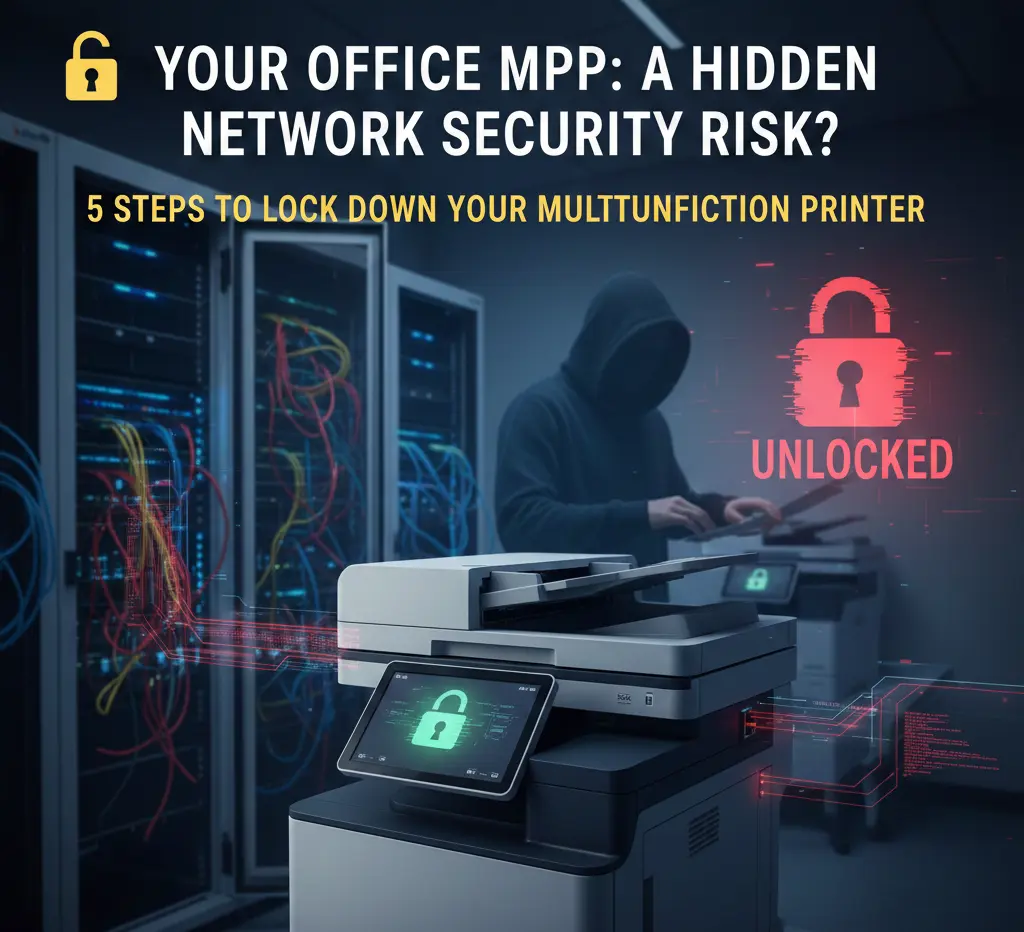
Your Dallas Office MFP: A Hidden Network Security Risk? 5 Steps to Lock Down Your Multifunction Printer
The Unseen Endpoint: Why Your MFP is a Security Blind Spot in DFW
The Dallas-Fort Worth Metroplex is a major hub for finance, technology, and corporate headquarters. While your IT teams are focused on securing servers and remote endpoints, one critical device is often overlooked: the Multifunction Printer (MFP).
Your MFP is a sophisticated, network-connected computer that stores sensitive documents and is directly connected to your data pathways. Ignoring its security is a critical vulnerability that DFW businesses must address.
The Threat Landscape: What’s Stored on Your Printer?
Consider the highly sensitive data that passes through your MFP daily. This data is exposed in three primary ways:
| Risk Category | Description of Threat | Impact on Business |
| 1. Hard Drive Storage | Every document scanned, copied, or printed is stored on the MFP’s internal hard drive. | Physical removal of the drive by malicious actors can lead to a massive data breach. |
| 2. Network Access | Default passwords, open ports, and unpatched firmware make the MFP an easy target. | Used as a pivot point for hackers to launch internal network reconnaissance or DoS attacks. |
| 3. Print Job Snooping | Print job metadata and document queues can be intercepted over the network. | Reveals confidential client information, proprietary R&D, and internal financial details. |
The Fix: 5 Essential Steps to Lock Down Your Multifunction Printer
Protecting your MFP requires a layered, proactive management strategy. Here are five non-negotiable security steps, structured for immediate action:
1. Implement Mandatory Hard Drive Encryption (HDE)
This is your first and most vital defense against physical and remote data theft.
- Goal: Render data useless to anyone without the proper decryption key.
- Action Checklist:
- Verify that your MFP model supports AES 256-bit encryption.
- Enable automatic data sanitation (overwriting the hard drive) after every print/scan job.
- Prioritize devices that carry Common Criteria Certification (ISO/IEC 15408) for proven security standards.
2. Enforce Strict User Authentication
Prevent unauthorized access and ensure documents are only released to the intended recipient.
| Authentication Method | Security Benefit | Best Practice |
| Tap-to-Print | Ties print jobs directly to a verifiable user ID (e.g., corporate badge/RFID). | Integrates with existing corporate access systems for a seamless, secure workflow. |
| PIN/Password | Requires the user to be physically present to enter a code before a job is released. | Prevents sensitive documents from sitting exposed on the output tray. |
| Role-Based Control | Limits high-risk functions (like network scanning or configuration changes) to authorized groups. | Essential for meeting compliance standards required by DFW-based finance/medical firms. |
3. Never Ignore Firmware and Software Updates
Firmware is the operating system of your MFP. An unpatched MFP is a well-known, preventable security loophole.
- Treat Updates Urgently: Schedule MFP firmware patches with the same priority as server or workstation updates.
- Automate Monitoring: Use device management software to immediately flag any MFP that falls below the approved security version.
- Ensure Compliance: For Texas-based businesses, maintaining current patches is often a non-negotiable requirement for regulatory bodies like HIPAA and PCI-DSS.
4. Harden Network Connectivity (Ports and Protocols)
Minimize the network “surface area” your MFP exposes to the rest of the network.
- Disable Unused Services: Turn off default protocols that are unnecessary and insecure (e.g., FTP, Telnet).
- Use Secure Protocols ONLY:
- Ensure all remote management interfaces use HTTPS/SSL.
- Use SNMPv3 for monitoring, as it supports encryption and authentication (unlike older SNMP versions).
- Isolate Traffic: Place all MFPs on a segregated Network VLAN, separate from your main corporate data servers.
5. Change Default Passwords and Audit Regularly
The use of factory default credentials (admin/12345) remains one of the simplest and most exploited vulnerabilities globally.
- Immediate Action: Change the default administrator password immediately upon setup to a strong, complex passphrase.
- Enable Audit Logs:
- Track all user activity (successful jobs, failed logins, configuration changes).
- Audit logs are crucial for forensic analysis and proving compliance after a security event.
The Takeaway for Dallas Security-Conscious Businesses
Every device on your network is a potential risk vector. By leveraging these five security fundamentals, you transform your MFP from a hidden network vulnerability into a managed, secure, and compliant asset ready to meet the demands of the DFW business landscape.
Need a full security audit of your office technology? Contact the experts at Copiers Dallas for local, reliable support.
General Service and Quote Requests
If you plan to get copiers for your office, you can buy copiers or lease copiers. We can give you options for getting the copy machine that you want. You can contact our local copier services department in your location.
For all services, call Clear Choice Technical Services:
Phone: (972) 525-0888
For copier leasing, request a quote today.
For short-term rental inquiries, request a rental quote.
For dedicated Copier Repair Services in Dallas, please visit our Repair Services Website for immediate assistance. Our network is powered by Clear Choice Technical Services.
Read Clear Choice Technical Services Google Review.