
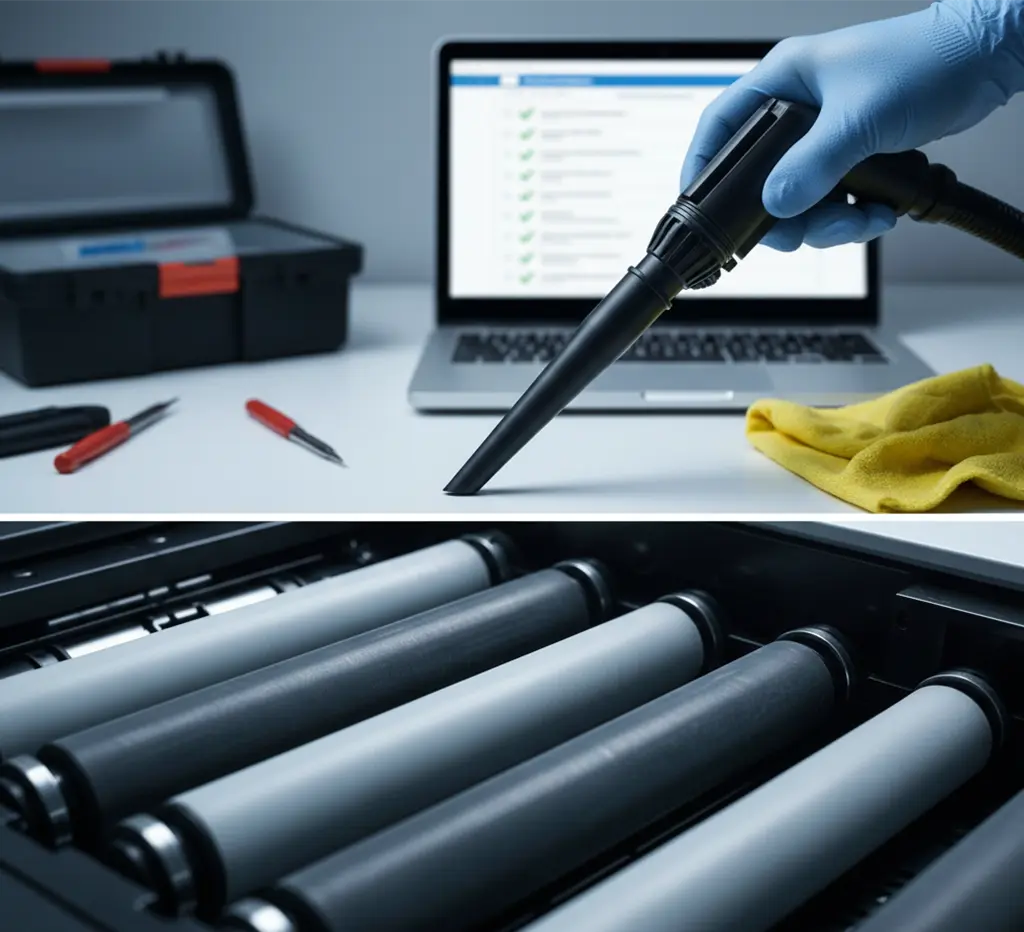
Beyond the Toner: The Essential Maintenance Checklist to Double Your Printer’s Lifespan
The Cost of Neglect: Why Printers Fail Early
In the modern office, the Multifunction Printer (MFP) is often treated like a black box: as long as it prints, no one touches it. This “set it and forget it” mentality is the single biggest reason why printing equipment breaks down, leading to costly service calls, expensive part replacements, and disruptive downtime.
The truth is, preventative maintenance is simple, requires only basic tools, and is the key to doubling your equipment’s lifespan well beyond its expected service contract.
This checklist moves beyond simply replacing consumables to focus on the mechanical components that lead to the most common failures: paper jams and poor image quality.
The Essential Maintenance Checklist: 5 Tasks to Perform Quarterly
Focusing on these five areas will proactively eliminate the most common sources of failure in any laser or MFP device.
1. Roller Replacement (The Paper Highway)
Rollers are the mechanical components responsible for picking up paper from the tray and guiding it through the machine. They wear down, become slick, and are the primary cause of paper jams and multi-sheet feeds.
- Symptom of Failure: Frequent paper jams at the beginning of the print path; the printer struggles to pick up paper.
- The Fix: Purchase a Roller Maintenance Kit specific to your model. This kit includes the Pickup Roller (which grabs the paper) and the Feed/Separation Roller (which prevents multiple sheets from being grabbed).
- Maintenance Tip: Always handle new rollers with gloves, as the oil from your fingers can degrade the rubber surface, causing new feed issues.
2. Fuser Cleaning and Inspection (The Hot Spot)
The fuser is the heating assembly that melts and presses the toner powder onto the paper, making the image permanent. It is arguably the most critical and expensive part of a laser printer.
- Symptom of Failure: Toner smears, ghost images, or toner that wipes easily off the paper.
- The Fix: Use the printer’s internal diagnostic menu to check the fuser life counter. Do not clean the fuser unless explicitly instructed by the manufacturer. Instead, focus on timely replacement according to the manufacturer’s page count specifications.
- Longevity Trick: Use only the paper types specified in the user manual. Using paper that is too thick or too thin stresses the fuser components, leading to premature failure.
3. Internal Dust and Debris Removal
Toner is a fine powder. Over time, toner dust, paper fibers, and debris accumulate inside the device, coating sensors and causing jams or misfeeds.
- Safety First: Always unplug the machine and allow the fuser area to cool completely before opening the device.
- Tools: Use a Toner Vacuum (a specialized vacuum designed for fine particles) or a can of compressed air used very sparingly in a well-ventilated area.
- Key Areas: Focus on the path beneath the toner cartridge, the paper entrance area, and near the paper sensors.
4. Scanning Glass and ADF Cleaning (The Image Path)
For MFPs, clean scanning is essential. Dust, fingerprints, and correction fluid residue on the scanning glass will appear as streaks or lines on every scanned or copied document.
| Component | Cleaning Frequency | Recommended Tool |
| Scanning Flatbed Glass | Weekly | Microfiber cloth and approved, ammonia-free glass cleaner. |
| ADF (Automatic Document Feeder) Strip | Monthly | Inspect the thin strip of glass inside the ADF. Clean it thoroughly, as this is where long streaks originate. |
| ADF Feed Rollers | Quarterly | Dampen a cloth with water and wipe down the rubber feed rollers inside the ADF to restore grip. |
5. Firmware and Software Updates
Firmware is the operating system of your printer. Regular updates don’t just add features; they patch security vulnerabilities and, most importantly, fix known bugs that can cause crashes, communication errors, and unnecessary service calls.
- Check the Vendor Site: Every quarter, visit the manufacturer’s website (e.g., HP, Canon, Xerox) and enter your model number.
- Install Latest Firmware: Use the print management utility to push the newest firmware update to all devices on the network.
- Benefit: Updated firmware often includes improved paper handling algorithms, proactively reducing the likelihood of device-specific paper jam errors.
The Takeaway: Maintenance is Your Best Investment
A full technician service call can cost hundreds of dollars, not including parts. By taking 15 minutes per device every three months to perform this simple checklist, you significantly extend the life of your equipment, maintain optimal print quality, and save substantial money on unnecessary repairs.
General Service and Quote Requests
If you plan to get copiers for your office, you can buy copiers or lease copiers. We can give you options for getting the copy machine that you want. You can contact our local copier services department in your location.
For all services, call Clear Choice Technical Services:
Phone: (972) 525-0888
For copier leasing, request a quote today.
For short-term rental inquiries, request a rental quote.
For dedicated Copier Repair Services in Dallas, please visit our Repair Services Website for immediate assistance. Our network is powered by Clear Choice Technical Services.
Read Clear Choice Technical Services Google Review.